Alerts
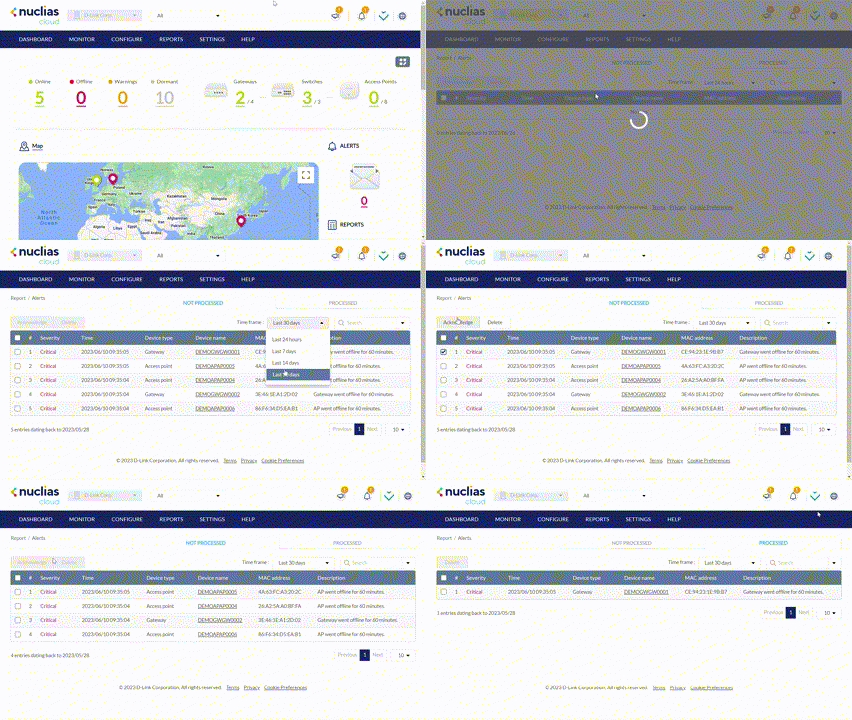
From the Alerts window, you can view a detailed log of all alerts occurring on the network. Alerts are divided into two types: processed and not processed alerts. Unprocessed alerts are events that have occurred on the network which are pending action by the managing user. Processed alerts are event alerts that have been acknowledged and handled by the managing user.
Note: Users of the Viewer role type will not receive alert notifications.
The types of alerts shown in the alert report can be configured in the Alert Settings. Refer to the Alert Settings section for more information.
Acknowledging Unprocessed Alerts
Unprocessed alerts shown in the alert log can be flagged as acknowledged to keep track of which alerts have been reviewed and handled by the user.
Note: Alerts are managed per user. Multiple users with the required editing rights within the same organization can see the same alerts depending on their Alert Settings. If one user acknowledges or deletes alerts, they will no longer appear for this user, but will still be visible for the other users until they acknowledge or delete these alerts on their respective user accounts.
- Navigate to Reports > Alerts.
- Click the Not Processed tab in the top-right of the screen.
- From the alerts list, click the checkbox next to the alert(s) you wish to acknowledge.
- Click Acknowledge.
Note: Acknowledged alerts will be automatically moved to the Processed tab.
Deleting Unprocessed/Processed Alerts
Alerts shown in the alert log can be deleted from the log.
Note: Alerts are managed per user. Multiple users with the required editing rights within the same organizations will see the same alerts. If one user acknowledges or deletes alerts, they will no longer appear for this user, but will still be visible for the other users until they acknowledge or delete these alerts on their respective user accounts.
- Navigate to Reports > Alerts.
- Click the Not Processed or Processed tab in the top-right of the screen.
- From the alerts list, click the checkbox next to the alert(s) you wish to delete.
- Click Delete.
- When prompted to confirm, click Yes.
Note: Deleted alerts will be permanently deleted, this action cannot be undone.
Searching for Alerts
- Navigate to Reports > Alerts.
- Click the Not Processed or Processed tab to filter the shown alerts.
- [Optional] Select a time frame from the drop-down menu.
- From the alert list, click the Search field.
- [Optional] Click the filter drop-down menu and enter the following information:
Note: Multiple filters can be populated to narrow down the search result.
|
Device Type |
Select the device type from the drop-down menu to filter alerts for. |
|
Device Name |
Enter the name of the device that triggered the alert. |
|
Severity |
Select an alert severity level from the drop-down menu. |