Alert Settings
New alerts will be displayed at the top right  to notify you after you log in. Alerts can also be accessed by clicking Reports > Alerts. You will also receive the configured alerts by email.
Note: Users of the Viewer role type cannot configure alert settings here and they are configured per user. Each user with the required editing rights within the organization can configure the types of alerts to be notified.
Configuring Alert Notifications
You can customize what types of network events will trigger alert notifications. Events are divided into general and device-specific events.
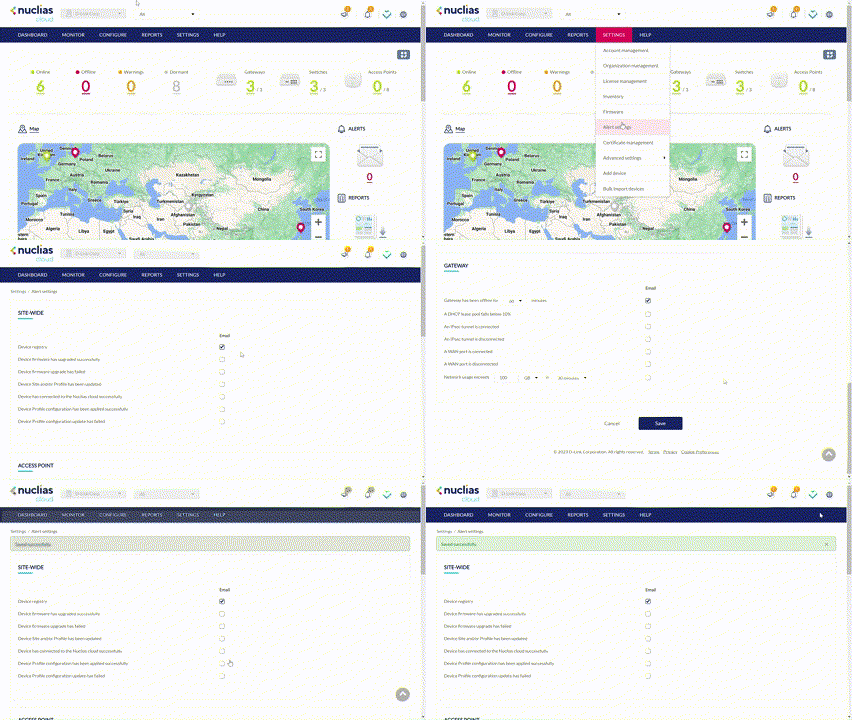
- Navigate to Settings > Alert Settings.
- In the Site-wide section, select the event types to receive alert notifications for:
|
Device Registry |
A new device has been registered to a site and/or profile. |
|
Device Firmware Has Upgraded Successfully |
Sends an alert notification when a device firmware's version has successfully upgraded. |
|
Device Firmware Upgrade Has Failed |
Sends an alert notification when a device firmware upgrade failed. |
|
Device Site and/or Profile Has Been Updated |
Sends an alert notification when a device has been assigned to a different site or profile. |
|
Device Has Connected to the Nuclias Cloud Successfully |
Sends an alert notification when a device has successfully connected to Nuclias cloud. |
|
Device Profile Configuration Has Been Applied Successfully |
Sends an alert notification when a configuration update has been successfully pushed to affected devices. |
|
Device Profile Configuration Update Has Failed |
Sends an alert notification when a configuration update failed to be pushed to affected devices. |
- In the Access Point section, select a time (in minutes) from the drop-down menu, and check the respective checkbox to receive notifications by both the cloud portal (go to Reports > Alerts) and email whenever the device goes offline for longer than the selected time period.
- In the Switch section, select a time (in minutes) from the drop-down menu, and check the respective checkbox to receive notifications by both the cloud portal (go to Reports > Alerts) and email whenever the device goes offline for longer than the selected time period.
- Select Any port or a specific port from the drop-down menu, select a time (in minutes) from the drop-down menu, and check the respective checkbox to receive notifications by both the cloud portal (go to Reports > Alerts) and email whenever the selected port(s) (by port tags) are down for longer than the selected time period.)
- In the Gateway section, select the event types to receive alert notifications for:
|
Gateway Has Been Offline for |
Select a time (in minutes) from the drop-down menu, and check the respective checkbox to receive notifications by both the cloud portal (go to Reports > Alerts) and email whenever the device goes offline for longer than the selected time period. |
|
A DHCP Lease Pool Falls Below 10% |
Sends an alert notification when the available addresses of a DHCP lease pool falls below 10%. |
|
An IPsec Tunnel Is Connected |
Sends an alert notification when an IPsec tunnel is established. |
|
An IPsec Tunnel Is Disconnected |
Sends an alert notification when an IPsec tunnel is disconnected. |
|
A WAN Port Is Connected |
Sends alert notification when a WAN port of the device is connected. |
|
A WAN Port Is Disconnected |
Sends an alert notification when a WAN port of the device is disconnected. |
|
Network Usage Exceeds |
Sends an alert notification when the network volume exceeds the configured threshold value in a defined time frame. |
- Click Save.