License Management
The License Management window provides more detailed information for all licenses assigned to an organization, including status, term, activation and expiration dates, and the device type for a license as well as its remaining time. It also allows you to add or import license keys and view license history of expired licenses.
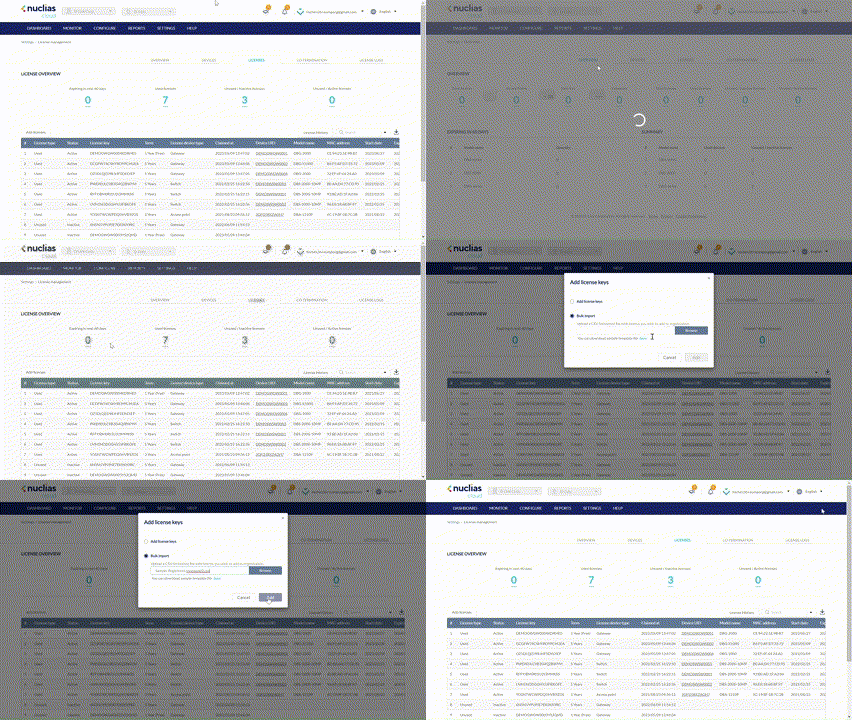
Note: The availability of the License Management page depends on the account role and privilege level of the managing user.
License Overview
- Navigate to Settings > License Management.
- Click the Licenses tab.
- The License Overview displays licenses in the following category:
|
Expiring in Next 60 days |
Licenses that will expire in 60 days. Click to obtain detailed information about these licenses. |
|
Used Licenses |
Licenses that have been assigned to devices; the licenses can be either active or inactive, depending on whether the license period has been started. |
|
Unused Inactive Licenses |
Licenses that have neither been assigned to devices nor been activated. |
|
Unused Active Licenses |
Licenses that have been activated but have not been assigned to devices. |
Adding a License Key
License keys can be added to the organization so they can be manually assigned to devices at a later point.
- Navigate to Settings > License Management.
- Click the Licenses tab at the top.
- Click Add Licenses.
- In the License Key window, enter the required information:
|
License Key |
Enter a valid license key. |
- Click Add to add more keys.
To add multiple licenses at once:
- Click Bulk Import.
- [Optional] Download the reference sample template.
- Click Browse.
- Locate the CSV-formatted file containing the license keys using the following format: [License key]
- [Optional] Download the reference sample template.
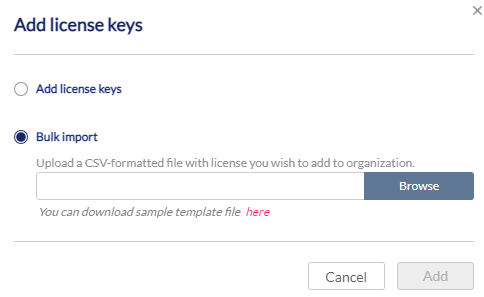
- Click Add.
Searching for a License Key
- Navigate to Settings > License Management.
- Click the Licenses tab at the top.
- From the license key list, click the Search field.
- Enter a keyword to search for all fields.
[Optional] Click the filter drop-down menu to display the search criteria: License Type, Status, License Device Type, License Key, and Expiration Date.Note: Multiple filters can be populated to narrow down the search result.
- The results are displayed as the refined table listing with the following properties:
|
License Type |
The type of the license: Used – has been assigned to a device. Unused – has not been assigned to a device. |
|
Status |
The current status of the license: either Inactive and Active. |
|
License Key |
License key serial number. |
|
Term |
Length of the license; 1 Year, 3 Years, etc. |
|
Claimed at |
Date and time the license was added to the organization in the format yyyy/mm/dd hh:mm:ss (24-hour clock). |
| License Device Type | The associated device type of the license. |
|
Device UID |
UID of the device the license is assigned to. |
|
Model Name |
Model name of the device the license is assigned to. |
|
MAC Address |
MAC address of the device the license is assigned to. |
|
Start Date |
License start date in the format yyyy/mm/dd. |
|
Expiration Date |
License expiration date in the format yyyy/mm/dd. |
|
Time Remaining |
The number of days that is left on the license until it expires. |
Viewing the License History
The License History shows the licenses that are already expired.
- Navigate to Settings > License Management.
- Click the Licenses tab at the top.
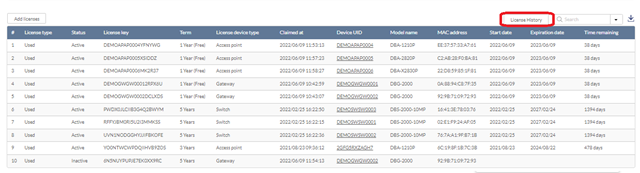
- From the license key list, click License History. The License History shows the licenses that are already expired with the following information: License Key, Term, Claimed at, Organization, and Model name. You can select a time slot (number of days) that defines the time that the license was expired.
Downloading License Key List
- Navigate to Settings > License Management.
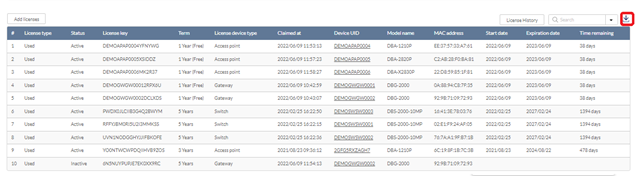
- From the license key list, click the Download icon in the top-right.
Viewing the License Log
Operations performed on the organization licenses or important events of the licenses such as license expiration can be searched and viewed in the License Log.
- Navigate to Settings > License Management.
- Select the License Logs tab from the top menu. The table displays the licenses management activities history including the Time, Account that performed the license activity, License key, Action that was performed, and Details about the activity.

License Co-termination
License co-termination eases license management by terminating all licenses of the participating devices on the same date regardless of their original expiration date.
Note: The operation of license co-termination is irreversible, and the original license cannot be recovered.
Devices from the same Organization that can participate for Co-termination include devices with active licenses and expired licenses. Licenses from the same organization that can be used for co-termination include active and inactive licenses bound on devices and unused active licenses (but not the unused inactive licenses). Moreover, the Co-termination formula is a weighted average calculated by multiplying the remaining days by the device weight and dividing the sum by the total weights of all devices.
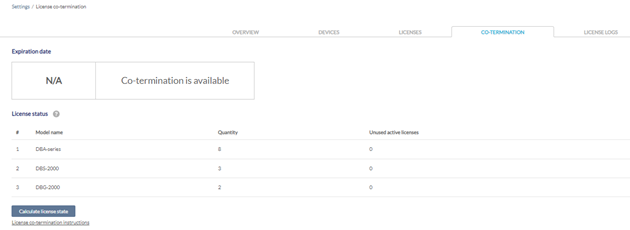
To co-terminate licenses:
- Navigate to Settings > License Management.
- Select the Co-Termination tab from the top menu.
- Click Calculate License State. The estimated Expiration date and the remaining number of days until expiration will be displayed.
- [Optional] Click the License co-termination instructions link to learn the principles of the license co-termination calculation.
- Click License co-terminate at the bottom to proceed with the process.
- A window will appear to display important notice about the operation. Note that the operation cannot be reversed, and the original license would be terminated and replaced by the new license keys with the co-termination date.
- After reading the notice, click I understand the terms and still wish to proceed. Then click Confirm.
- You should receive a notification email once the licensing co-termination has been applied.