Firmware
From the Firmware window, you can view basic firmware information, and set up a firmware upgrade schedule. Firmware upgrades are managed at the Site level and configured per device type, which means that all devices of the same type that are linked to that Site will use the same firmware upgrading policy.
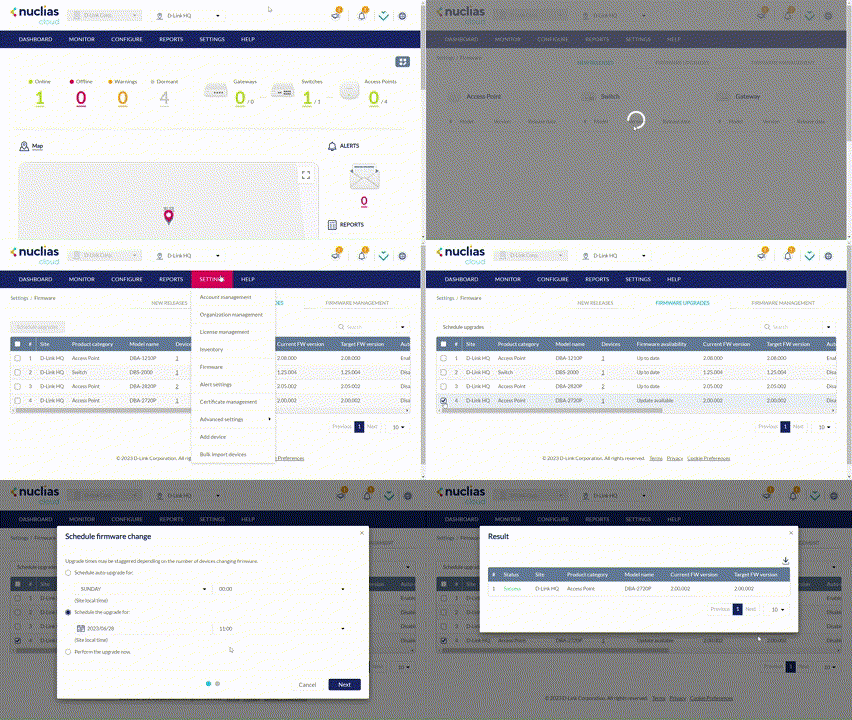
Notes: The Firmware page is only available to users with the Editor role and above.
Setting an Automatic Upgrade
Upgrade windows provide an easy way of regularly maintaining device firmware by setting a fixed weekly time and date to automatically scan for new firmware and upgrade devices if a new firmware version is available.
- Navigate to Settings > Firmware.
- Select a Site from the Site menu in the top of the screen.
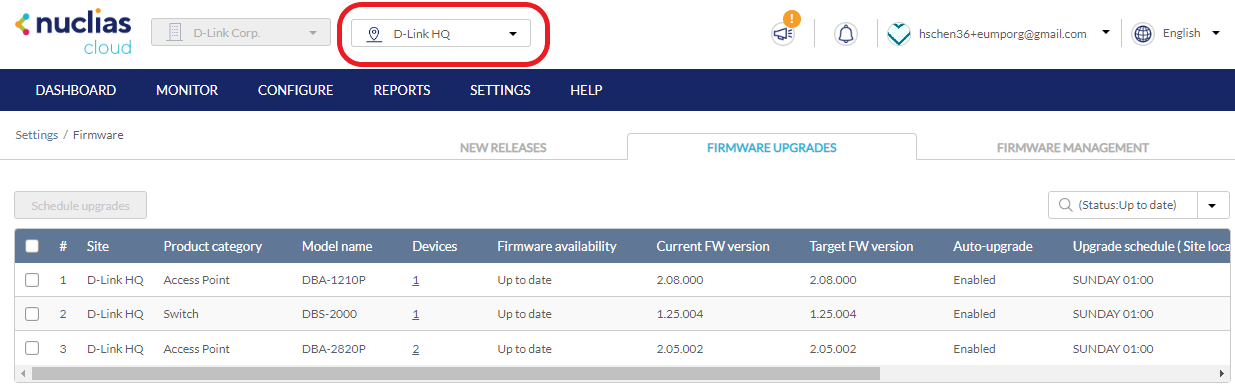
- Select a model from the list and click Schedule upgrades at the top left.
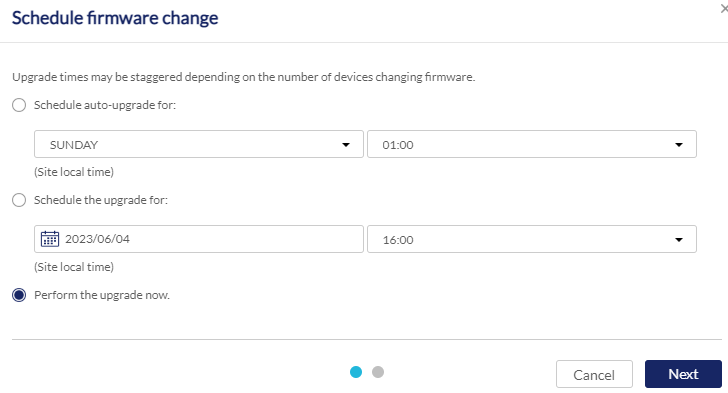
- In the Schedule firmware change window, select the option Schedule auto-upgrade for: to set a automatic firmware upgrade schedule
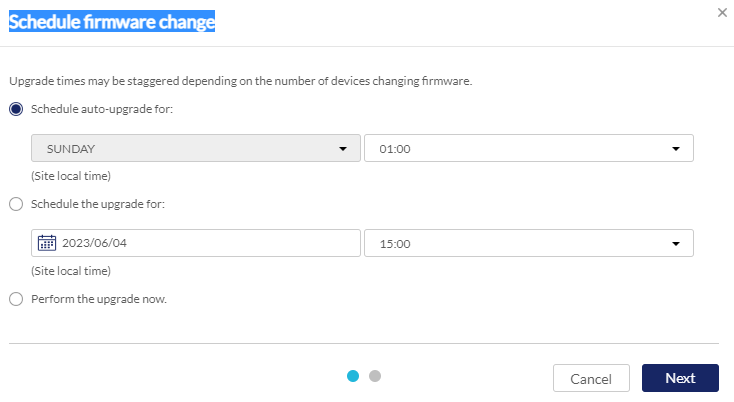
- Select a day of a week and time of day from the drop-down menu. Select Next to continue.
- Check the current firmware and the target firmware which will be the latest firmware set for the upgrade.
- Click Schedule changes to confirm the upgrade. A result window will appear showing the settings of the schedule upgrade.
The configuration will be reflected in the Current FW version, Target FW version, Auto-upgrade, and Upgrade schedule column of the FW upgrade list. 
Setting a Custom Device Upgrade
You can define a specific time and date to scan for firmware updates which override the automatic upgrade schedule.
- Navigate to Settings > Firmware.
- Select a Site from the Site menu in the top of the screen.
- Select the Firmware Upgrades tab.
- Select a model from the list and click Schedule upgrades.
- In the Schedule firmware change window, select the option Schedule the upgrade for: to set a scheduled firmware upgrade with a desired firmware version for the designated device model.
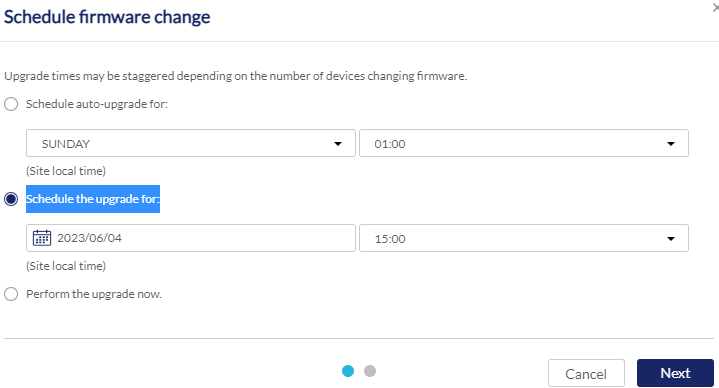
- Select a day of a week and time of day from the drop-down menu. Then click Next to continue.
- For Target FW versionSelect the desired firmware to upgrade to.
- Click Schedule changes to confirm the upgrade. A result window will appear showing the settings of the schedule upgrade.
The configuration will be reflected in the Current FW version, Target FW version, and Upgrade schedule column of the FW upgrade list.
Performing a Manual Firmware Upgrade
Devices can be manually upgraded by performing an on-the-spot firmware upgrade check.
- Navigate to Settings > Firmware.
- Select a Site from the Site menu in the top of the screen.
- Select the Firmware Upgrades tab.
- Select a model from the list and click Schedule upgrades.
- Select the option Perform the upgrade now to perform a manual upgrade now. Then click Next to continue.
- Check the current firmware and select the target firmware to upgrade to.
- Click Schedule changes to perform the upgrade immediately.
- A result window which summarizes the upgrade task with the device and firmware information will be displayed. You can click Download at the top right to download the summary report in your local drive.
Getting Firmware Management Information
You can obtain the firmware management information such as the the update status, automatic upgrade schedule, availability of newer releases, and the last upgrade time. You can also customize the report and download it to your local drive.
To generate a firmware management report:
- Navigate to Settings > Firmware.
- Select the Firmware Management tab.
- Select a model from the Device Model drop-down list to display data only for the model. Select All to display all models.
- Select Update Available to display firmware that has new releases or Up to Date to display devices having up-to-date firmware. Select All to display both types.
- Click Preview to display the results.
- Click Download to download the displayed report as a single file in your browser's default download directory.