Organization Management
From the Organization Management window, you can view more information about all organizations linked to the user account including device status and amount. You can also create Site and Site Tags, and invite new users depending on the account privilege.
Note: The availability of the organization management features depends on the account role and privilege level of the managing user.
Adding a Site to an Organization
Sites are an easy way for organizations to geographically group devices together. Sites are informational and do not impact the configuration settings of devices that are listed under it. Creating additional Sites allows you to further subdivide and structure the organization and network.
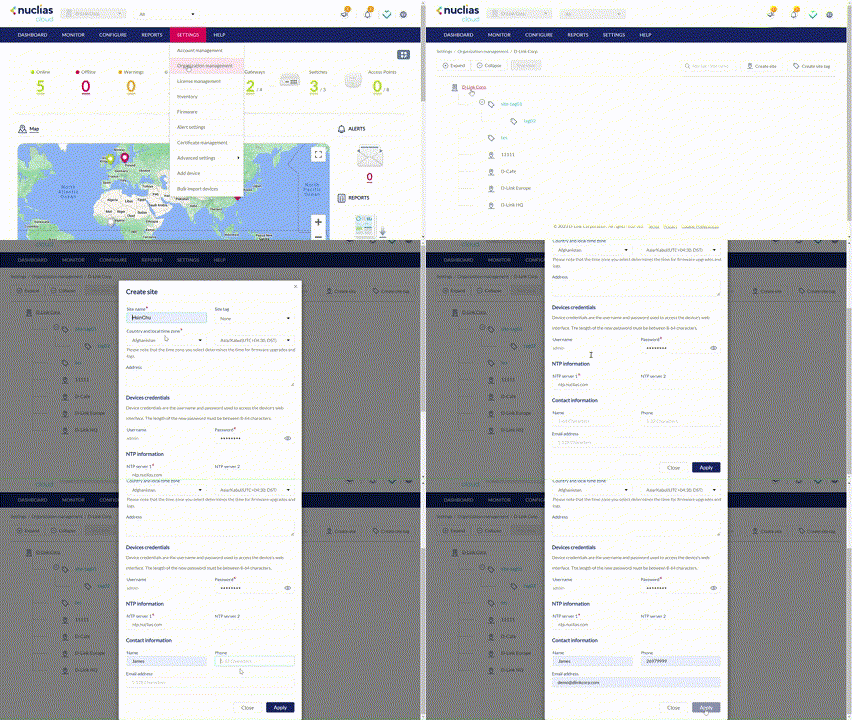
- Navigate to Settings > Organization Management.
- From the organization list, click Create Site under the Actions column.
- Specify the following information:
|
Site Name |
Enter a name for the Site |
|
Site Tag |
[Optional] Select a Site Tag from the drop-down menu. This will place the Site under the selected Site Tag in the organization structure. You may also use a SIte Tag if you wish to group Sites together. |
|
Country and Local Time Zone |
Select a country and time zone from the respective drop-menu. Wireless products will select legible channels according to your selection of country. The time zone will be used for the scheduling such as firmware management |
|
Address |
Enter a valid address. This is required for the Site to properly show on the Map overview. |
|
NTP Server 1 |
Enter an NTP server address. |
|
NTP Server 2 |
[Optional] Enter a secondary NTP server address. |
| Devices Credentials | Enter the Password of the admin account used to access the Device's web interface. |
|
Name |
[Optional] Enter the name of the Site’s contact person. |
|
Phone |
[Optional] Enter the contact number of the Site’s contact person. |
|
Email Address |
[Optional] Enter the email address of the Site’s contact person. |
- Click Apply.
Adding a Site Tag to an Organization
- Navigate to Settings > Organization Management.
- From the organization list, click Create Site Tag under the Actions column.
- Specify the following information:
|
Site Tag Name |
Enter a name for the Site Tag |
|
Parent Tag |
Select a Parent Tag from the drop-down menu. This will place this Site Tag under the selected Parent Tag in the organization’s structure. |
- Click Save.
Inviting Users to an Organization
Additional users can be invited to the organization through the organization management window.
Note: The ability to invite users depends on the account role and privilege level of the managing user.
- Navigate to Settings > Organization Management.
- From the organization list, click Invite User under the Actions column.
- Specify the following information:
|
User Name |
Enter the user’s name. |
|
Access Level |
Select the access level of the user. This determines what information the user can view. Based on the selected access level, select the organization from the drop-down menu. |
|
Email Address |
Enter the user’s email address. This is also the user name to log into the Nuclias Portal interface. |
|
Site Tag |
Select a Site tag. This determines which Site tags of the organization can be viewed by the user. Selecting None will allow the user to see all Site tags under the selected organization. |
|
Managed Site |
Based on the selected Site tag, select a Site. This determines which Sites of the organization can be viewed by the user. Selecting All will allow the user to see all Sites under the selected organization. |
|
Role |
Select a role for the user. Roles determine the degree of editing and viewing privileges of the user. Admin: Full editing and full viewing rights. Editor: Partial editing and full viewing rights. Monitor: Full viewing rights. Viewer: Limited viewing rights. |
- Click Submit.
- The user will then receive an email to validate the email address and set a password.
Deleting an Organization
Organizations can be deleted if the admin is the last remaining member of the Organization. Once the Organization has been deleted, the remaining licenses will be transferred to the admin.