Add Device
Adding new devices to the Inventory without Site and Profile assignment keeps them inactive. If you wish to add devices with only UID information and register them at a later point, go to Settings > Inventory instead.
Note: The Add Device page is only available to users with the Admin role.
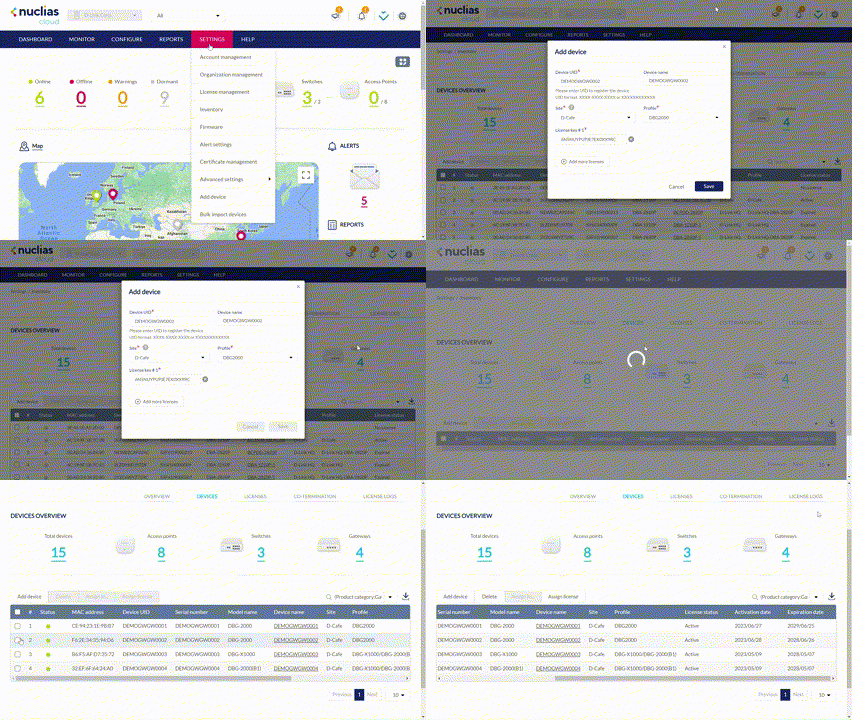
- Navigate to Settings > Add device.
Note: The add device window will automatically appear. - Specify the following information:
|
Device UID |
Enter the device’s Unique Identifier (UID) found on the label printed on the device. The UID may be listed in the format XXXX-XXXX-XXXX or XXXXXXXXXXXX. When entering the UID, do not include dashes. |
|
Device Name |
Enter a name for the device to easily find the desired device. |
|
Site |
Select a Site to link this device to. |
|
Profile |
Select a Profile for this device to apply that Profile's configuration settings. Click on the drop-down menu to display a list of available profiles for your model. |
|
License Key |
[Optional] Enter the license key. Click on the drop-down menu to display a list of available licenses for this device type. Note: Every new device will be issued a one year complimentary license key. You may add more license keys to extend the period of use. |
- Click Save.