Account Management
From the Account Management window, you can consult an overview of all managed user accounts. It provides additional information about users, including the organization, Site Tag, and Site(s) the user is assigned to, and the user status.
Note: Access to user accounts depends on the account role and privilege level of the managing user. Only administrators can modify account information of the managed sites.
Inviting a New User
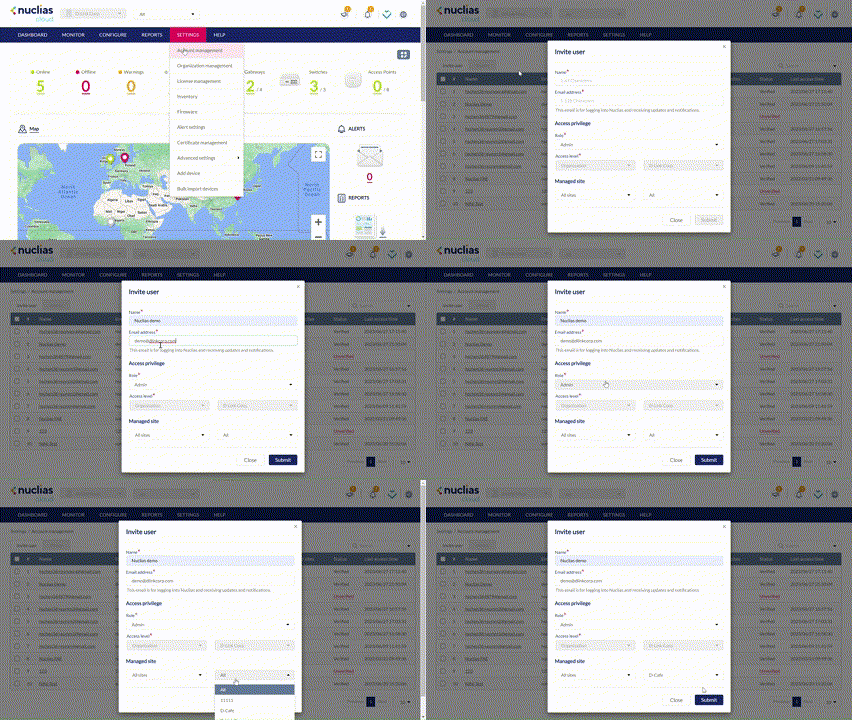
- Navigate to Settings > Account Management.
- Click Invite User.

- Specify the following information:
|
Username |
Enter the user’s name. |
|
Email Address |
Enter the user’s email address. This is also the user account to log in to the Nuclias Portal interface. |
|
Role |
Select a role for the user. Roles determine the degree of editing and viewing privileges of the user. Admin: Full editing and full viewing rights. Editor: Partial editing and full viewing rights. Monitor: Full viewing rights. Viewer: Limited viewing rights. |
|
Access Level |
Select the access level of the user. This determines what information the user can view. Based on the selected access level, select the organization from the drop-down menu. |
|
Managed Site |
This determines which Sites of which the organization can be viewed by the user. Selecting All sites will allow the user to see all Sites under the selected organization. |
- Click Submit.
Note: The invited users will receive an email and be required to set their own password to login. Once logged in, the invited user will be able to manage the sites with the corresponding rights.
Editing an Existing User
- Navigate to Settings > Account Management.
- From the user account list, click the user you wish to edit.
- In the Edit User window, edit the following information:
|
Name |
Enter the user's name. |
|
Role |
Select a role for the user. Roles determine the degree of editing and viewing privileges of the user. Admin: Full editing and full viewing rights. Editor: Partial editing and full viewing rights. Monitor: Full viewing rights. Viewer: Limited viewing rights. |
|
Managed Site |
This determines which Sites of which the organization can be viewed by the user. Selecting All sites will allow the user to see all Sites under the selected organization. |
- Click Save change.
Searching for a User
- Navigate to Settings > Account Management.
- From the user list, click the Search field.
- Enter a keyword in the search field.
Note: All fields matching the value entered will automatically appear. - [Optional] Click the filter drop-down menu and enter the following information:
Note: Multiple filters can be populated to narrow down the search result.
|
Name |
Enter the user's name. |
|
|
Enter the user’s email address. |
|
Role |
Enter the role assigned to the user. |
Deleting a User
User accounts can be deleted from an organization, permanently removing their ability to view and edit the organization.
Note: The ability to delete a user is dependent on the role and privilege level of the managing user.
- Navigate to Settings > Account Management.
- From the user account list, click the checkbox next to the user account(s) you wish to delete.
- Click Delete.

- When prompted to confirm, enter your user password.
Note: This is the password of the managing user and not the password of the user to be deleted. - Click Yes.
Note: The deleted user will receive a notification email to confirm the account was deleted.