Summary Report
The summary reports provide statistic reports (e.g. Highest CPU utilization and top service ports), which is similar to the Last 24 Hours Summary in the Dashboard; however, it allows you to select the desired time frame and specific statistics for reporting.
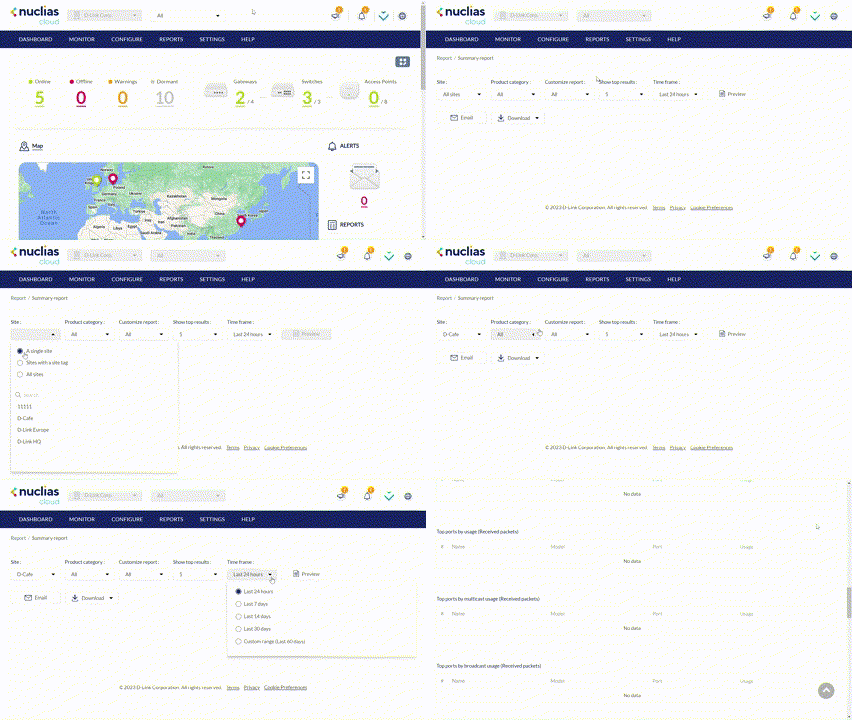
Filtering the Reports
- Navigate to Reports > Summary report.
- Select the desired Site to filter the report.
- Select the Product category to filter the report by device type.
- Select the types of statistics from Customize report to display statistic information in the report. Select All to show all report types.
- Select the maximum number of entries for each information category to display from the Show top results drop-down menu.
- Select a time frame from the drop-down menu.
- Click Preview.
- You can download the current report by clicking Download > Download report.
Sending Reports by Email
- Navigate to Reports > Summary report.
- Refer to the above section on report filtering to customize the report.
- Click Email. Fill in email addresses then click Send email. For multiple recipients, please add separator “;” between email addresses, for example, [email protected];[email protected].
Downloading Archived Reports
Monthly reports are automatically archived in Nuclias Cloud and can be downloaded for reference.
- Navigate to Reports > Summary report.
- Click Download > Download archives in the top-right.
- Select a month from the drop-down menu.
- Click Download.
Note: The system archives reports older than 60 days and stores them for up to 2 years.