Map
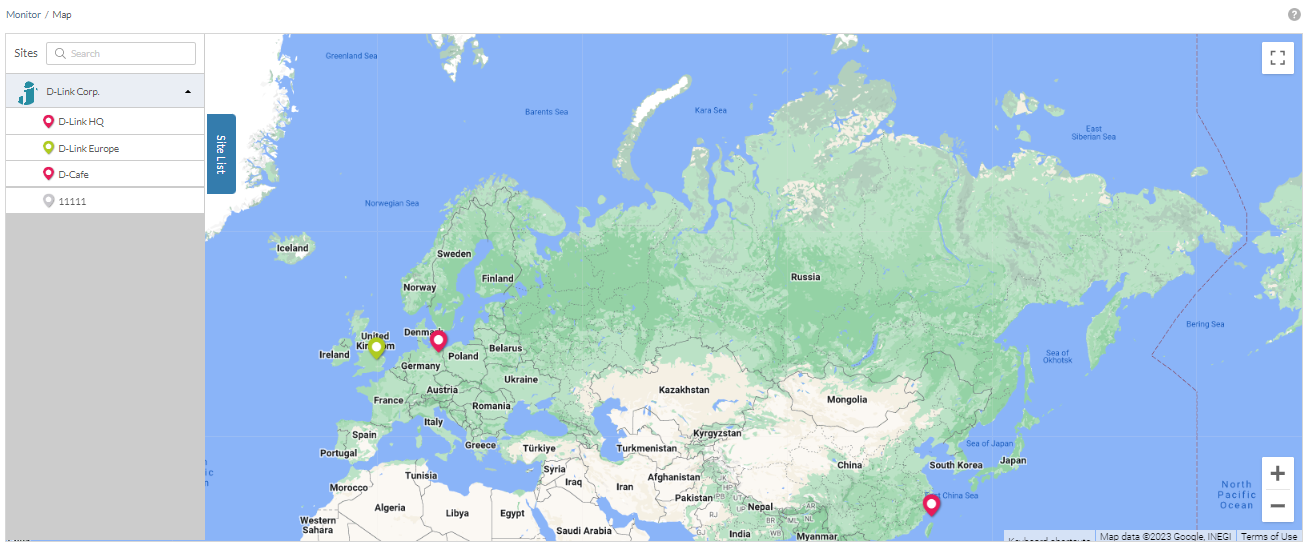
From the Map window, you can consult a geographical overview of the organization’s Sites in the form of an interactive world map.
Note: Sites must be linked to a valid address in order to show up on the map.
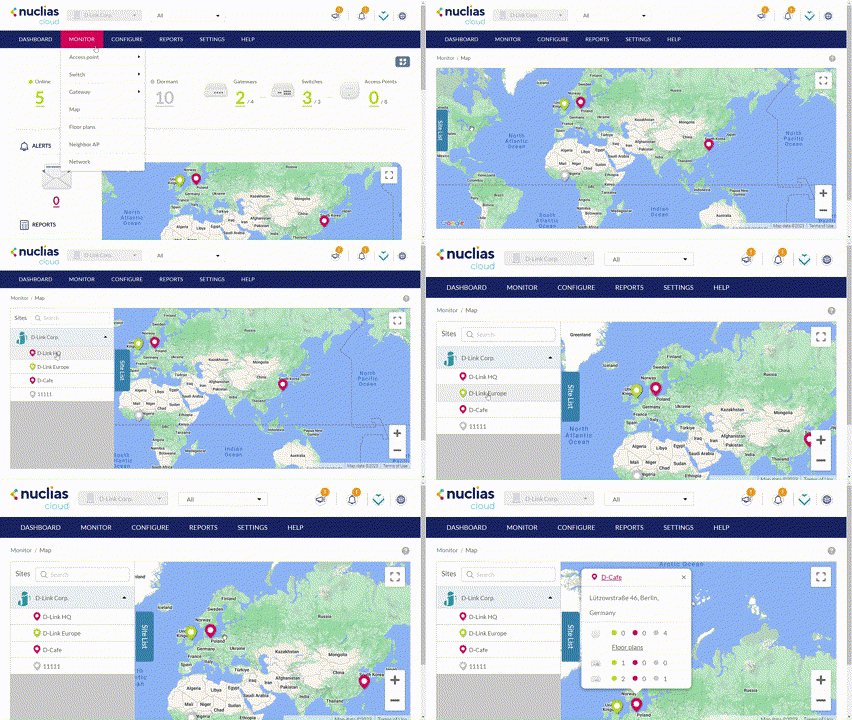
Navigating the Map
From the interactive map, you can view a geographical representation of the Site’s physical location as well as view basic information and the current status of the Site and its devices.
- Navigate to Monitor > Map.
- Click the expand icon in the top-right corner of the map to toggle full-screen mode.
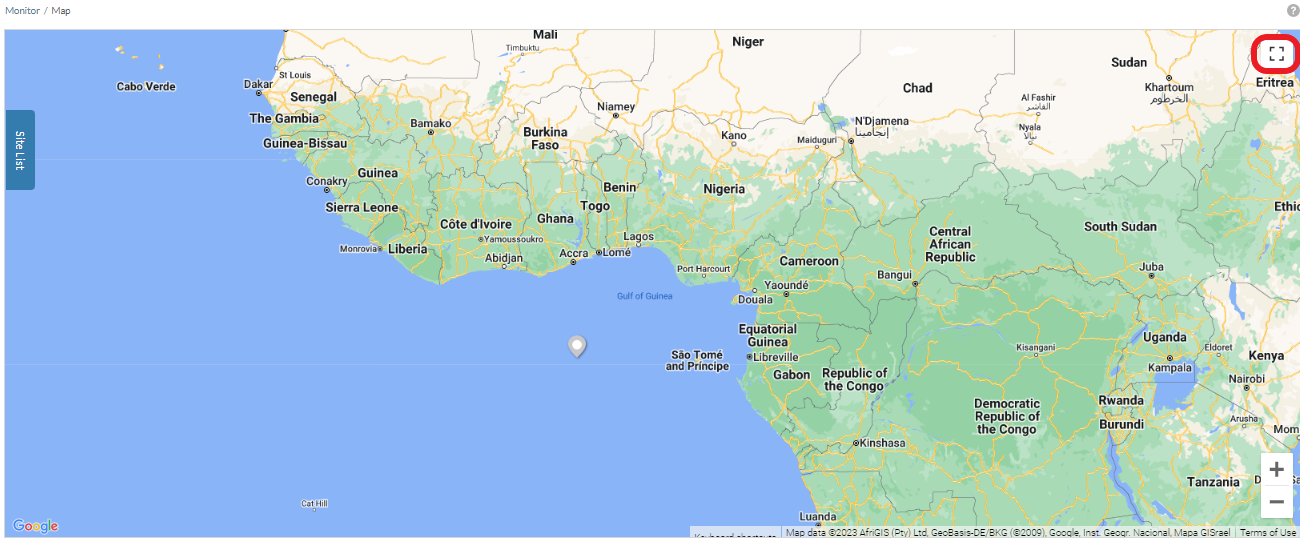
Note: Click the expand icon again to return to windowed mode.
- Click and drag the left-mouse button to move around on the map.
- Click the + and – buttons in the bottom-right corner of the map to zoom in and out on the map. Alternatively, hold Ctrl and scroll the mouse wheel up and down to zoom in and out.
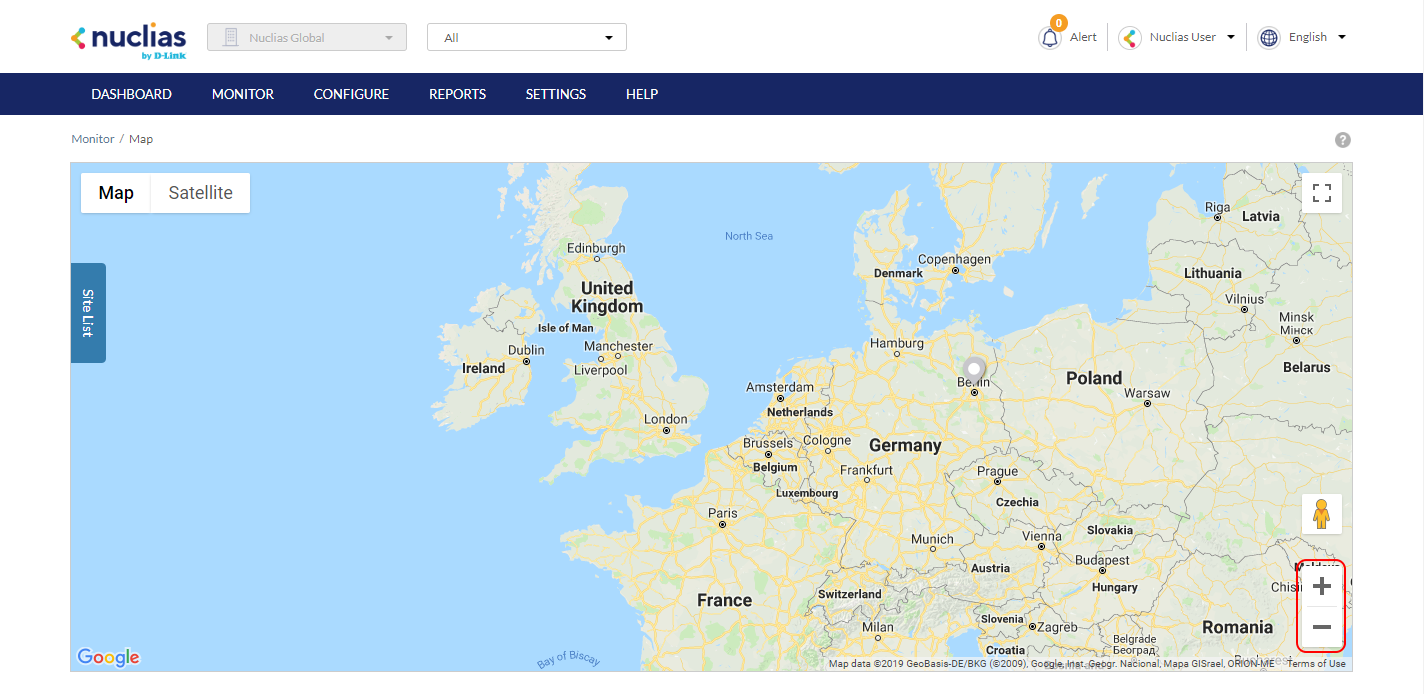
Navigating Sites on the Map Using the Site List
From the Site List, you can view all the Sites created under your organization that you have been authorized to access.
- Navigate to Monitor > Map.
- Click Site List on the left-hand side of the map.
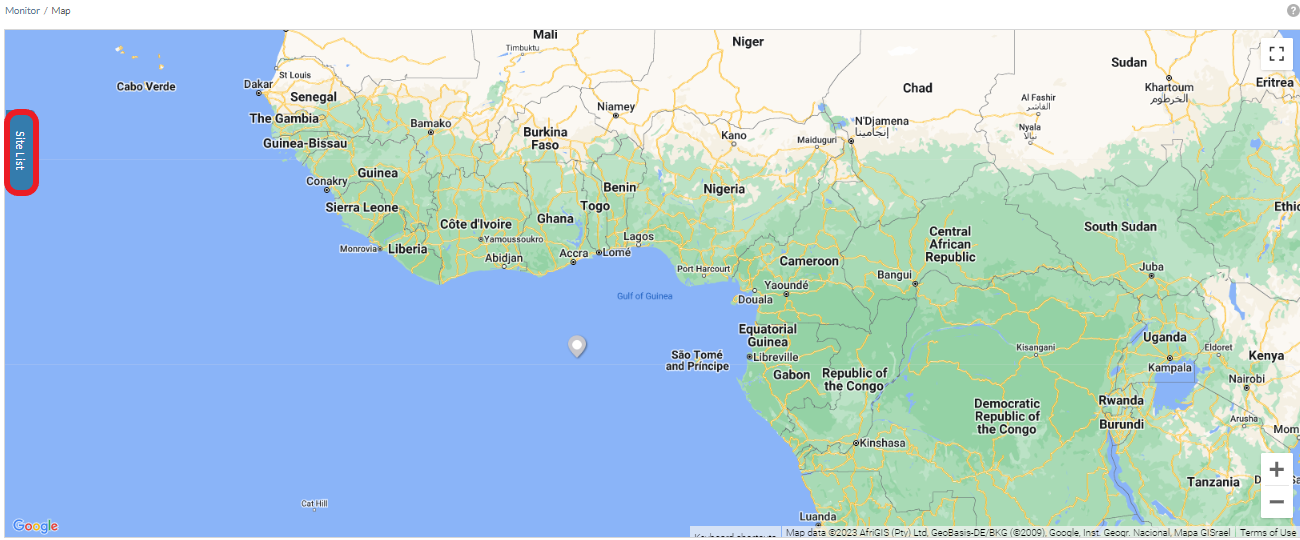
- In the Site List, click the organization name to expand the list of Sites under the organization.
- [Optional] Click the search field and enter the Site name.
- From the expanded Site list, click the Site name. The map will automatically navigate to the Site’s location on the map.
- Hover the cursor over the Site icon to view basic information and general device status.
- [Optional] Click the Site name in the Site window to open the Dashboard view for that Site.
- [Optional] Click the Floor Plan name in the Site window to be directed to the floor plan setting for the Site (you can also go to Monitor > Floor Plans to obtain the list of configured floor plans).