How do I enable or disable Geofencing using the mydlink app?
Geofencing is a virtual fence that automatically switches between Home and Away scenes when you enter or exit a designated area. With Geofencing, you can turn automation rules on or off without doing anything.
To enable or disable Geofencing, please refer to the following steps:
- Launch the mydlink app and log in with your mydlink account and password.

- Tap Menu.
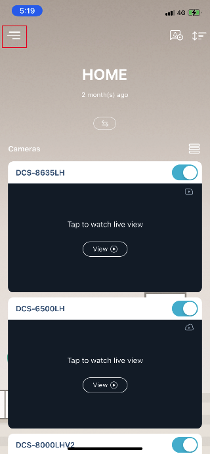
- Tap Scenes.
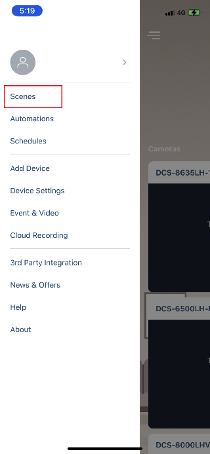
- Tap Geofencing.
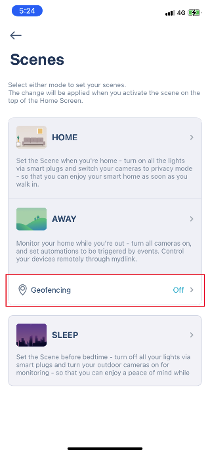
- Tap the
 icon to enable or disable geofencing.
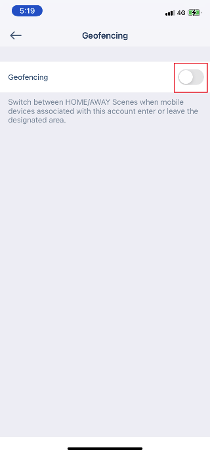
- Tap the
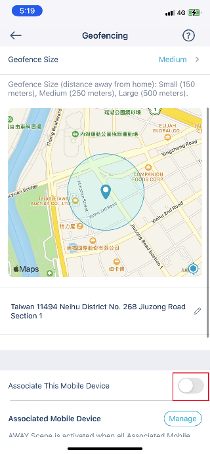
 icon next to Associate This Mobile Device to associate or disassociate with the current mobile device for the feature.
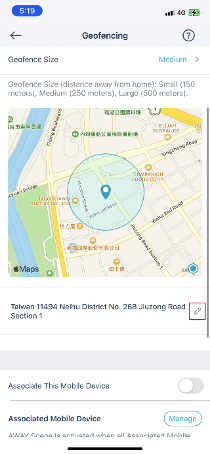
- Tap
 , and type the address that you want your geofence to center around.
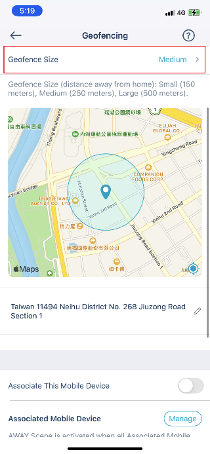
- The default geofence radius is set to medium. You can change your geofence size if needed. Simply tap Geofence Size and select small, medium, or large.
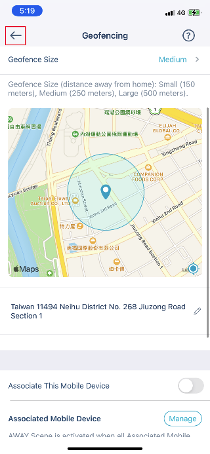
- Tap
 to save changes.
Note:
- If you are using iOS 13 (or later) or Android 11 (or later), “Location” in the system settings must be set to Always Allow (iOS) or Allow all the time (Android).
- If you want to associate multiple mobile devices with Geofencing, ensure you turn on Associate This Mobile Device on each mobile device.